Storing data
We use LocalStorage to store data locally. They are string-string value pair.
<form method='post' action='data:text/plain, Form submited.'>
  <p>Email:<br><input type='email' name='email' id='email' placeholder='test@example.com'></p>
  <p>Password:<br><input type='password' placeholder='********'></p>
  <p><input type='submit' value='Login'></p>
</form>
$("#email").on('keyup', function() {
  return localStorage['email'] = $(this).val();
});

$(function() {
  return $("#email").val(localStorage['email']);
});
In browser inspector, reader can view and modify any stored data in Local Storage.
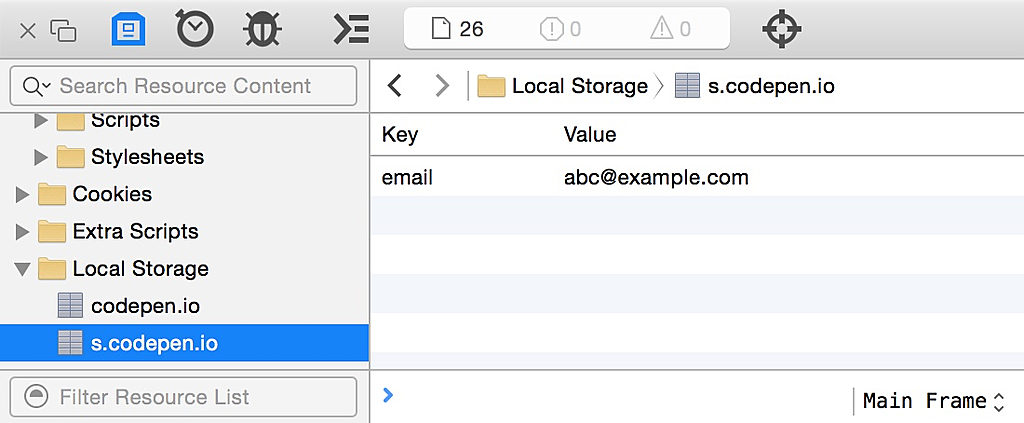
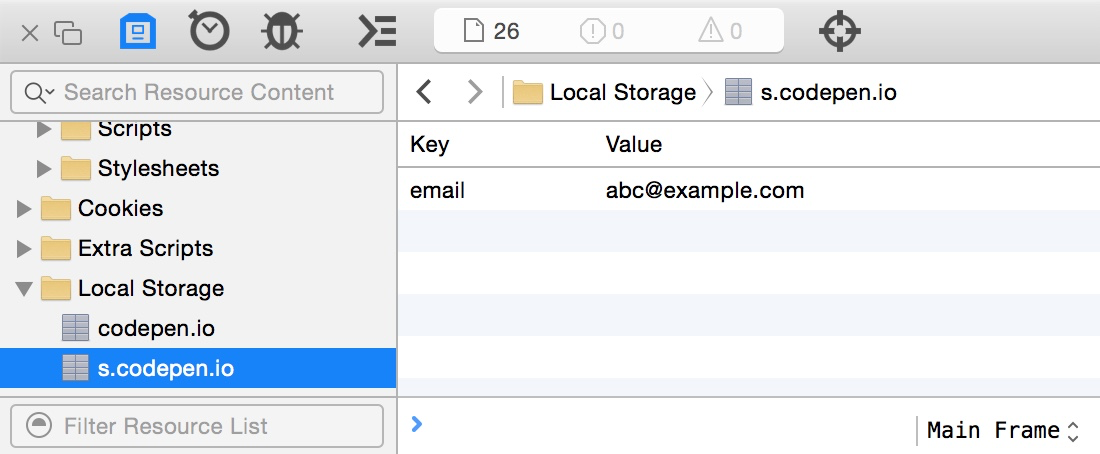
You may try the demo in this CodePen. Try to enter a value in email, then refresh the page and you should see what you have typed.
Variables in LocalStorage Key
Here is an advanced usage of Local Storage by using variables in keys.
"todos" = ["adfasdf", "adfasdf", "dfgdgf"]
"projects" = [1,2]

"tags" = ['important', 'low','family','work']
"tags:0:todos" = ["sdfsf", "sdasdasd", "werwer"]
"tags:1:todos" = ["sdfsf", "sdasdasd", "werwer"]
"tags:2:todos" = ["sdfsf", "sdasdasd", "werwer"]
"tags:3:todos" = ["sdfsf", "sdasdasd", "werwer"]

"lists:1:tags" = [0,3]

"lists:4:tags" = [0,4]

"projects:1"
"projects:1:lists" = [1,4,5]
"projects:1:list:1" = {name:"hi", priority:1}
"projects:1:list:1:todos" = ["adfasdf", "adfasdf", "dfgdgf"]

"list:{lastIndex+1}" = []

"lists" = [1,4,5]

"lastIndex" = 4
"list:1" = {name:"hi", priority:1}
"list:1:todos" = ["adfasdf", "adfasdf", "dfgdgf"]
"list:4" = ["adfasdf", "adfasdf", "dfgdgf"]